logo
HomeBlogs

Online Exam System Checks: What Candidates Should Test

Online Exam System Checks: What Candidates Should Test

Prepare for your online examination with a practical system check checklist. Learn how to test your computer, internet connection, webcam, microphone, browser, screen-sharing permissions, and exam environment, plus how to resolve common technical issues before the test.

Online Exam System Checks: What Candidates Should Test

“Before taking an online exam, candidates must test their device configuration, internet connection, webcam and microphone permissions, browser compatibility, and other required specifications to avoid issues during the exam. Moreover, candidates must review their identity documents and online proctoring software instructions to ensure the testing environment meets the stated rules.”

As online examinations have become common, many universities and certification bodies use AI proctoring software to maintain integrity and data security during an online assessment process.

However, for students, taking an online examination is not limited to a laptop/computer and an internet connection. Depending on the exam conducting body and  online exam monitoring software, candidates may need a compatible operating system, a supportive browser, a good-quality camera & microphone, and a stable internet connection.

Prepare your device as per the online proctoring software and follow the instructions carefully to avoid any technical issues during check-in or an examination. Poor configuration may cause several issues and prevent the candidate from completing the assessment.  

What are Online Exam System Checks?

Online exam system checks are pre-examination tests used to determine whether the system meets the required specifications, such as camera quality, microphone, internet connectivity, browsing, and more, ensuring the equipment fulfills the requirements of online exam software for smooth assessments.

Some of the platforms also provide a practice session or equipment testing session to help candidates become familiar with the remote proctoring software.

These checks basically serve two purposes; they help candidates understand the process and features of the system. Second, they help to confirm what technical challenges they may face and how to solve them before heading to the actual examination.

Please note that passing a system check does not mean that every part of the examination will work flawlessly; a brief test may not identify every network interruption, software conflict, firewall restriction, or issue that could arise later.

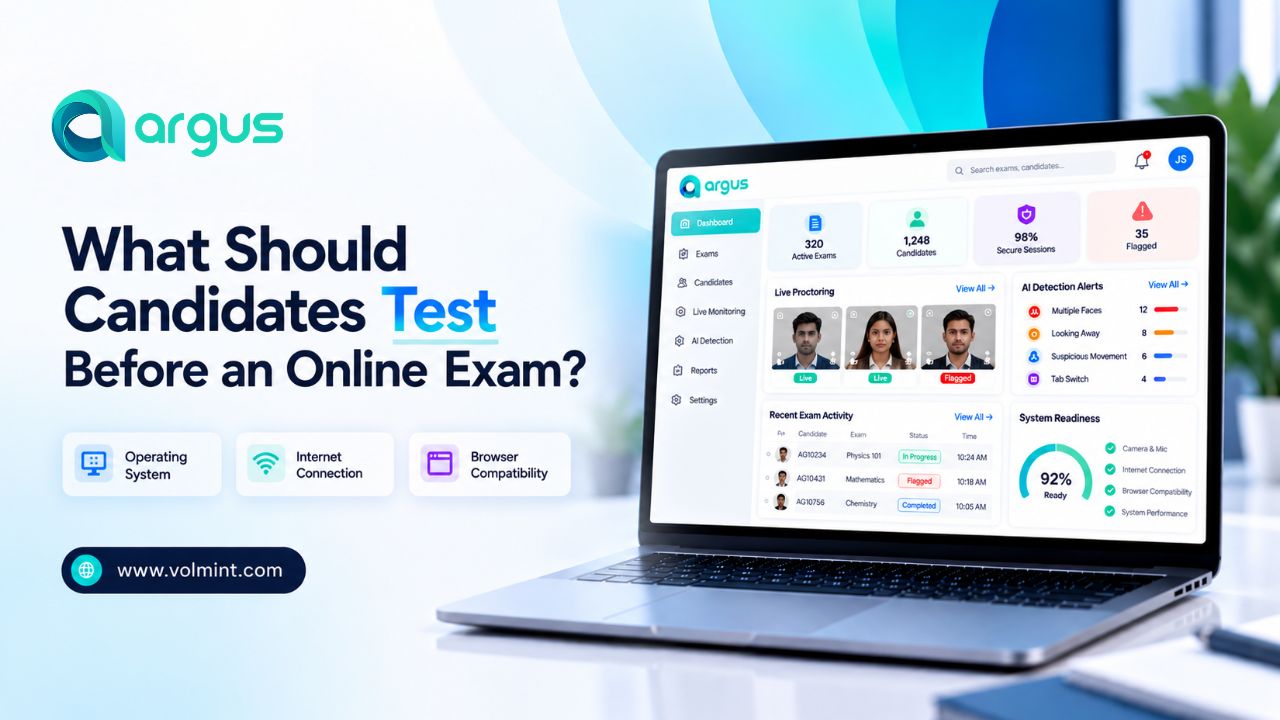
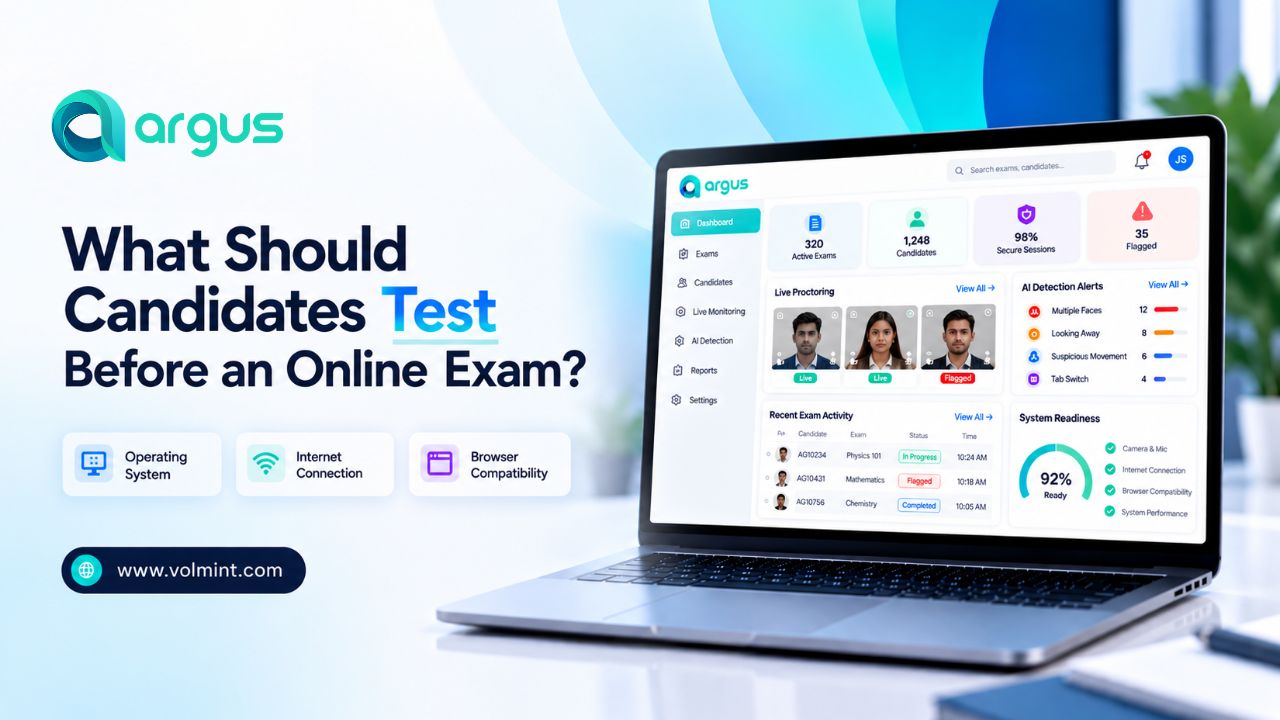
What Should Candidates Test Before an Online Exam?

Candidates should complete the checks required by their examination provider, preferably well before the scheduled assessment. The following checklist covers the most common areas to review.

1. Check your Computer and Operating System

Check and confirm that your system/device fulfills the technical specification requirements.

  • Choose the right browser or application

  • A download or installation is required

  • Browser permissions, cookies, or pop-ups must be enabled

  • The platform requires specific extensions or security settings

2. Test Your Internet Connection

During the check-in and the online test, a stable internet connection is important for logging in, verifying identity, reading questions, submitting answers, and communicating with a remote proctor when needed. A connection may appear fast during ordinary browsing but still experience interruptions during an examination.

3. Check Your Webcam and Camera Permissions

For online exam identity verification, camera permission is required for candidate verification. The webcam proctoring software helps to monitor and track student activities during online assessments.

Before the exam, confirm that:

  • The webcam is detected by your computer
  • The camera must be of good quality for better visibility
  • Necessary permissions are enabled to avoid any issues
  • Other applications are not preventing the exam software from accessing it

4. Microphone and Speaker Testing

An AI-Powered Exam Monitoring System monitors audio to detect suspicious activities and for communication with the supervisor. Therefore, a good-quality microphone and speaker are required for smooth communication and instructions during the exam. Make sure:

  • Use a good-quality microphone and speakers, ensuring clear audio
  • Make sure your microphone is not muted when required
  • The device must work properly and be controlled
  • The audio devices comply with examination rules.

5. Verify Browser Compatibility and Secure Exam Software

Most software runs on a standard browser; however, some of the AI proctoring software requires a specific browser. Ensure:

  • Choose the right browser or application
  • A download or installation is required
  • Browser permissions, cookies, or pop-ups must be enabled
  • The platform requires specific extensions or security settings

6. Check Screen Sharing and Permission Control

Some online proctoring software needs permission to access the screen, camera, microphone, or other system functions. Other examinations may use browser lockdown or restrictions on switching applications. Check that the required permissions are available and that the examination software launches correctly.

7. Preparing for Examination Environment

For an online examination, ensuring device compatibility and technical requirements is highly important. Candidates may also need to meet specific requirements for the room, desk, lighting, and permitted materials.

What Should You Do If the Online Exam Check Fails?

If the online exam check fails, it does not mean that you can not take the examination. It means that you should identify potential issues and solve them to meet the exam criteria by following the provider's troubleshooting instructions before proceeding.

Problem

What to Check

Webcam not detected

Camera connection, camera permissions, and whether another application is using the camera.

Microphone not working

Selected input device, mute settings, operating-system permissions, and application conflicts.

Internet Test Fails

Connection stability, network usage, router, and the provider's required speed.

Secure browser will not launch

Supported operating system, installation status, device permissions, and official troubleshooting guidance.

Screen sharing is blocked

Required permissions, organizational restrictions, and application settings.

Identity Verification Fails

Accepted ID, registration details, camera quality, lighting, and official verification instructions.

Device does not meet requirements

Minimum specifications and whether another approved device is available.


Conclusion

Online exam system checks help candidates identify technical issues before they interfere with an assessment. Testing your computer, internet connection, webcam, microphone, browser, and required software can reduce avoidable delays and make the check-in process more predictable.

Complete the system check early, use the same approved setup on exam day, and contact official support if a problem remains unresolved. A little preparation can help you begin your examination with fewer technical uncertainties and more confidence.

Frequently Asked Questions

More Blogs

Contact Volmint Technologies

Let's Connect for Technological Brilliance

Reach Out to Volmint Technologies Today and Unleash the Power of Customized Solutions Tailored to Elevate Your Business.

Contact Us
Footer Background Circle
Online Exam System Check: Candidate Checklist Before Exams